Showing posts with label excel formulas and functions. Show all posts

Excel Macros Tutorial

For many years I've had students asking how to create Macros in Excel. So I created this Excel Macros Tutorial to show how you can create, setup, and use an Excel Macro in 3 Easy Steps.

If you have tasks in Microsoft Excel that you do repeatedly, you can record a macro to automate those tasks. A macro is an action or a set of actions that you can run as many times as you want.

When you create a macro, you are recording your mouse clicks and keystrokes. After you create a macro, you can edit it to make minor changes to the way it works.


Suppose that every month, you create a report for your manager. You want to sum the sales of the customers' revenue and apply bold formatting. You can create and then run a macro that quickly applies these formatting changes to the cells you select.

Here is the video showing you exactly that example:


As always, please Like, Comment, and Share my videos to keep them coming.

If you'd like tips like these and others, please SUBSCRIBE.

Thanks,
Debbie

Excel Tutorial: Named Ranges

When referencing data in larger Excel spreadsheets, it can often lead to incorrect results because of errors when selecting data. To avoid this, use Excel Named Ranges.

Here's a quick video to do just that.

It's really quite simple.


Excel Tutorial: Auditing Formulas with Trace Precedents

If you have formulas that are based on the contents of another cell, you have precedent cells. If you have problems with a formula or result, you can trace the precedent cells to help track down the problem. The Trace Precedents command is useful to see the trail of data relationships. The Trace Precedents command allows you to show tracer arrows to show the relationship between the active cell and the precedents to that cell. 


  • Tracer arrows are blue when pointing from a cell that provides data to another cell.
  • Red tracer arrows indicate an erroneous value.
  • Tracer arrows are black when pointing from a cell in another worksheet.
  • The other worksheet is represented by a worksheet icon. 


If you prefer, watch the Video Tutorial below.


If tracer arrows do not show, you will need to turn on the objects in the Options window. 

Use the following procedure.
  • Select the File Tab
  • Select Options.
  • Select the Advanced tab.
  • Under the Display options for this workbook, make sure the workbook you are using is displayed.
  • The For objects, show option should be All.


If a cell has a precedent that is in another worksheet, the other worksheet must be open.


For more tips like this, CLICK HERE to

download my FREE eBook:

65+ Ways to Use Office to be More Productive!

Excel Essentials: Tutorial for Beginners Now Open

I'm excited to announce my newest course - Excel Essentials: Tutorial for Beginners!

In this course, you will learn to use Excel in under 2 hours! We not only cover the basics, but teach useful Formulas, Functions, and Analysis.


I'm proud to offer my First 30 Fans with a Coupon to take the course for FREE!

Just CLICK HERE for the FREE Coupon.

All I ask in return is that you write a review on the course.


Watch this quick preview of the course to learn more:


I hope you enjoy the course, and I know that you will learn valuable Excel skills.


Enjoy!

Debbie


How to Join Cells using Excel Concatenate

Excel Functions can seem overwhelming, but once they are broken down, they can be very easy, but can provide you with useful results.

Here's how to Join Cells using the Excel Function Concatenate.


You may read the steps here or view the video version below.


Do you need a Full Name field to import into a particular program? But, you only have First Name and Last Name fields in Excel? There are many times when you need to Merge or Join Cells in Excel - this tip shows you how easy it really is:

Insert a New Column.
Type =CONCATENATE(Cell1,Cell2,etc)

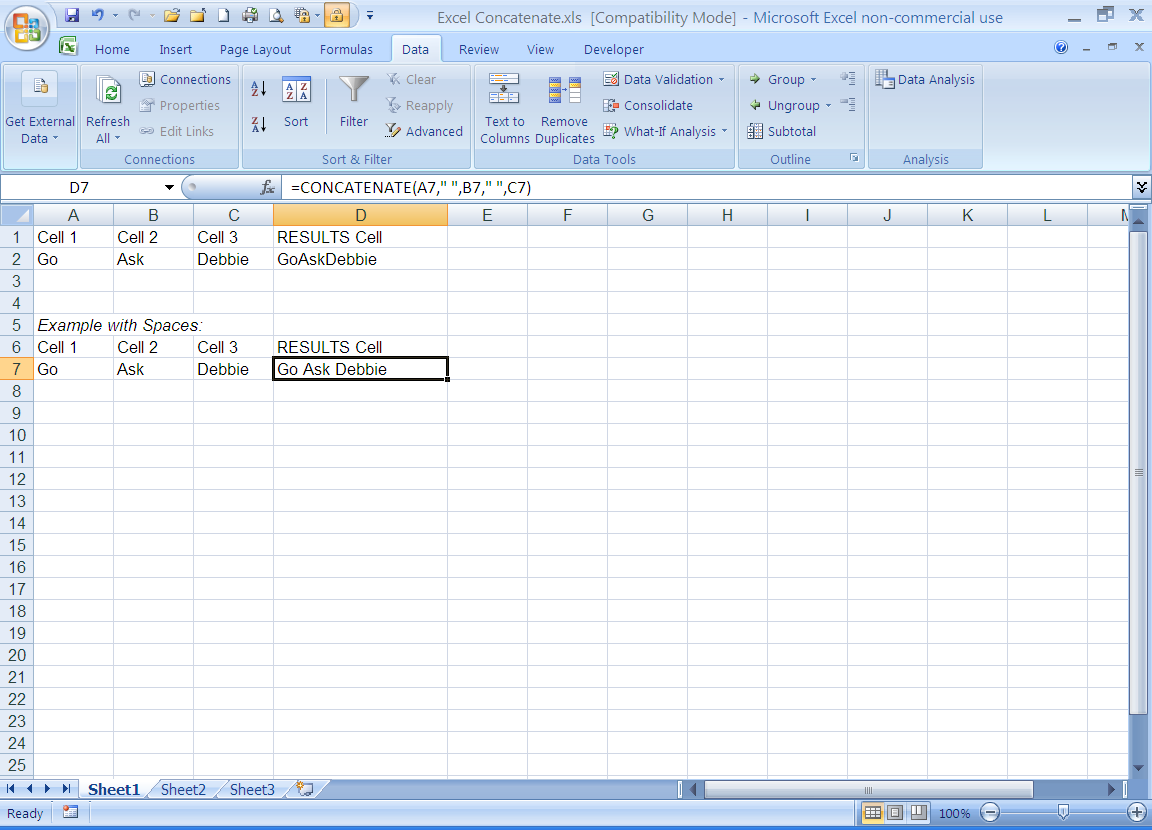
Using the formula above, here is an example of the results:

Cell A1             Cell B1              Cell C1           RESULTS Cell D1
Go                    Ask                   Debbie            GoAskDebbie

If these are the results you wish, simply Copy the formula down the column to include all rows you wish.


Let's say you need a Space or a Comma between each of the cells once they have been merged. To do this, type your formula as follows:
=CONCATENATE(Cell1," ",Cell2," ",etc.)

This would create the following result from the above scenario "Go Ask Debbie." Notice now there are spaces between the cell contents.


Get creative this can help you create many different types of results.


For more tips like this, CLICK HERE to
download my FREE eBook:
65+ Ways to Use Office to be More Productive!


Most Popular